Who is iPhone 13 Pro Really For?
One of the core beliefs at Apple is telling a good story; it’s weaved into everything they do — every product, service, and publication. I mean, have you seen their 2021 Holiday commercial, Saving Simon? It’s really good1.
Something you’ll notice with that commercial is that it opens by telling you it was shot on iPhone 13 Pro. And in-fact that story they told at the iPhone event in September, about iPhone 13 Pro, was that it’s for movie makers and cinematographers. That’s a fun story. It might even work. But that’s not who iPhone 13 Pro is actually for. That’s just the story. That’s why they call it “Pro.”
But if it’s not for movie makers, who is it really for?
What Movie Makers Actually Use
When Apple rolled out their $6,000 Pro Display XDR, with not so optional $1,000 stand, they talked about how it’s for a specific type of creator. The type of creator who who would spend $30,000 on similar types of displays. Those creators are also, likely, making movies. They need reference monitors to make sure their cameras are capturing the scenes as perfectly as possible.
If they are spending $30,000 to make sure their reference monitors have the truest colors, do you think that Sophia Coppola, Aaron Sorkin, or Stephen Spielberg would settle for shooting their movies on a 4K iPhone? Nah. Hell, MKBHD — a very popular tech YouTuber — famously uses RED cameras, which start around $6,000 and quickly increase from there.
So while Apple can tell this great story, iPhone 13 Pro, with all of its cinematic prowess, is actually for someone else: content creators like you and me.
The iPhone 13 Pro is for Content Creators
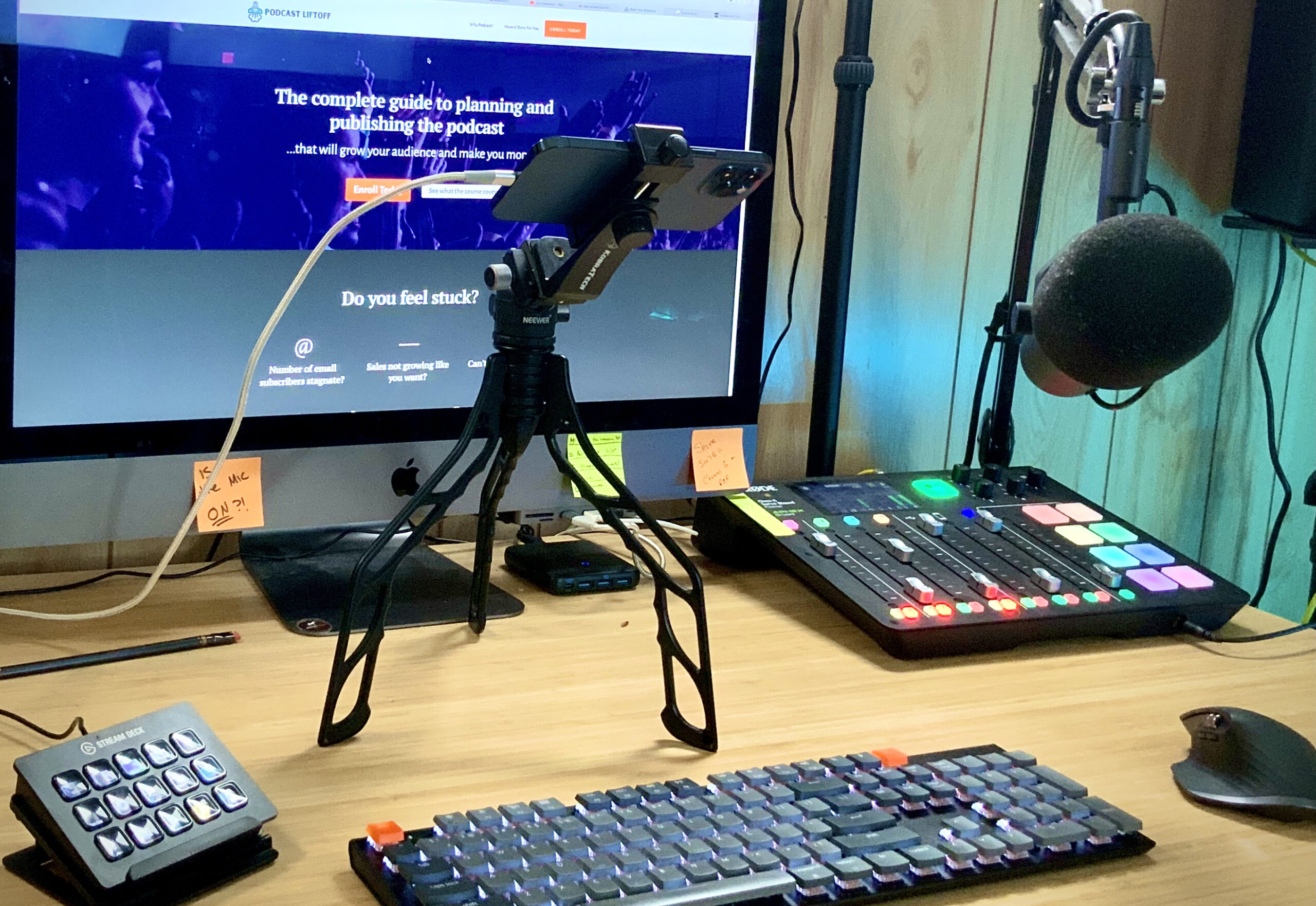
My video recording kit is above average, and excluding the audio gear, it costs less than $1,700. With my Shure SM7B and Rodecaster Pro, it clocks in around $2600.
But that’s something I’ve invested in over years…and it’s something I felt like I needed to do as a course creator and podcaster for hire. But if you’re just starting on YouTube, or even if you’ve been doing it for a bit but can’t invest $2,000 in a set up, iPhone 13 Pro is perfect.
It’s got 4K on both the back and front camera. It’s got cinematic mode, which allows you to blur backgrounds…and that works pretty darn good.
It can be mounted on a tripod and connected to your computer. Heck, with the right apps, you can even use it as webcam.
Recording great looking videos for YouTube, your course, or even to release your podcast in video format, has never been easier, thanks to iPhone 13 Pro.
If you are a content creator, the iPhone 13 Pro is for you. It allows you to look like the pros, without dropping thousands of dollars of gear like the pros.
I’d argue the iPhone 13 Pro is called “pro” because it makes you a pro. Not because actually for pros.
So…what do you need to use your iPhone as a camera?
Setting Up Your iPhone to Record Video
There are a few ways you can get this accomplished, and we’ll cover 2: straight recording (then editing), and live streaming.
Straight Recording
I think the simplest solution is a tripod for your iPhone with a remote or timer. You’ll also want good lighting; since this is such a mobile setup, you can likely find some good natural lighting. Here is my recommendation:
- iPhone 13 Pro
- Switchpod with ball head and phone clamp
- Key Light Air (or Ring light if you’re in a pinch).
When it comes to recording, your workflow should work best for you. If that’s editing right on your iPhone, go for it! There are a few good apps, like iMovie or Luma Fusion. If you want to transfer it to your computer, AirDrop, iCloud Sync, or via USB all work. Then you can edit how you’d like2.
Live Streaming
Live streaming is a bit more complicated because you can’t just plug your iPhone in and use it as a camera. Luckily, there are apps for that.
eCamm Live + Shoot
My personal favorite is eCamm Live. This is streaming software that allows you to use your iPhone (or iPad) as an input device…mostly for screen sharing. However, you can also pick up the simple app, Shoot, which will give you a clean camera feed…without any of the buttons or sensors.
Plug your phone into your Mac, open this app on your phone, and and set the input / camera in eCamm Live to the iPhone. You’l’l have a clean camera feed using your iPhone.
Note: If you use OBS, there’s the iOS Camera Plugin, but I was unable to get that to work reliably when I tried it a couple of years ago.
Use Your iPhone as a Web Cam with Cam
Another popular solution (and one that doesn’t require streaming software) is Reincubate’s Camo app. The is cross platform for iOS, Android, Mac, and Windows, and works this way:
- Get the Camo app for your iPhone
- Get the Camo app for your computer
- Plug your iPhone into your computer
It’s free to try, then $5/month, $39/year, or $79 for life to use3. And Camo works with anything that uses a webcam…including Zoom, Meet, and whatever app your record your videos in!
Become a Content Creating Pro
You don’t need to spend thousands of dollars on gear to make yourself look like a professional content creator. With the right tools, all you need is your iPhone.
Are you using your iPhone to record and upload videos? Let me know if you have any tips in the comments below!